


Leawo Free Screen Recorder Review: Best Free Option for Beginners?
If you are a beginner in screen recording, then you definitely should not miss this review of Leawo Free Screen Recorder, as it is very likely to become your choice!

Screen recording was initially mainly used for software demonstrations and teaching, but with the development of the internet and the rise of content creation, screen recording has gradually become an indispensable tool in modern times, with increasingly diverse uses. Simply put, screen recording is a process that allows users to capture screen activity and save it as a video file, meeting users’ needs in education, training, marketing, and personal entertainment.
As recording tools have developed to the present day, they have already become relatively mature, with various powerful recording tools making it difficult for users to choose, especially for those who are new to screen recording, making it even harder to select the right tool. If you are also troubled by not knowing how to choose, then don’t miss my Leawo Free Screen Recorder review today.
Part 1: What Is Leawo Free Screen Recorder?
Leawo Free Screen Recorder can be described as a truly free and ad-free screen recording tool specifically developed for the Windows system. Based on my several-month usage experience, I feel that its functions are indeed very rich and fully meet my requirements. For example, it has multiple screen recording modes, audio recording, camera recording, screen capture, real-time annotation, scheduled recording, no watermark, and no recording time limit, etc.
You can definitely experience them yourself. It’s worth mentioning that I have been using these functions for a long time without any problems. I have never encountered situations such as black screen during recording, no sound during recording, or poor recording quality.
Instead, the picture quality is very clear, and even the highest resolution can be output at 4K ultra-high definition. Don’t think that because it has so many functions, it will be very difficult to operate. Don’t think like that. Because its interface is very simple and the operation steps are also very easy. Even if you are a beginner, you can quickly get started.
Part 2: Step-by-Step Experience
Step 1: Download and install Leawo Free Screen Recorder from the official website.
I downloaded from the official website. The entire installation process was very smooth. All you need to do is follow the instructions on the website.
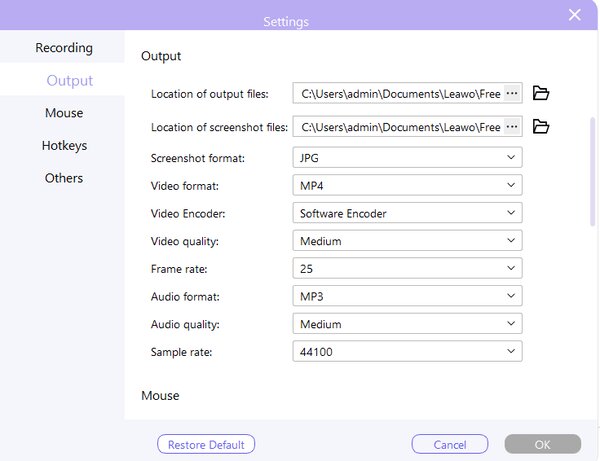
Step 2: Click the settings icon in the upper right corner of the interface and make the settings according to your personal needs.
This step is actually not necessary. You can completely avoid making any adjustments to the settings because the default settings are already very suitable for your device. I merely changed the location of the output file at that time.
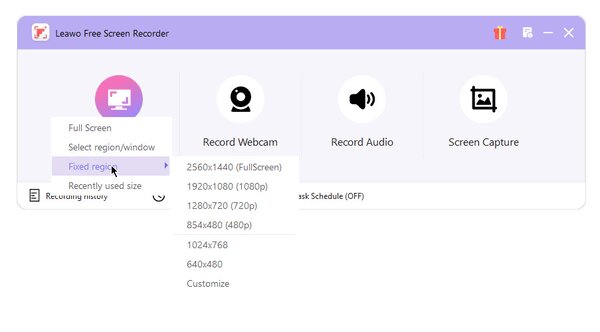
Step 3: Click on the “Record Screen” option on the left side of the interface and select the area you wish to record.
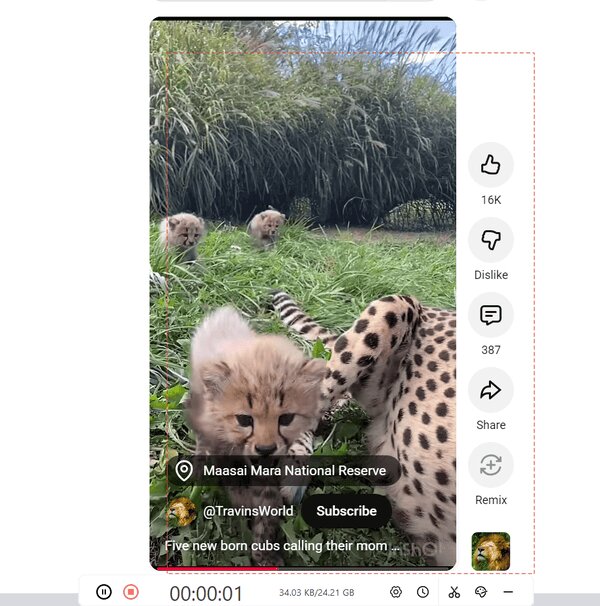
Leawo Free Screen Recorder supports full-screen recording, as well as recording in specific windows or areas. For me, I mostly use it to record short videos from YouTube, so I rarely need to choose full-screen recording. I just need to adjust the recording area to the area where the video is playing.
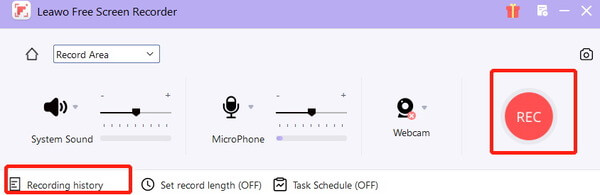
Step 4: Once you have selected the recording area, you can start adjusting the system sounds, microphones, and decide whether to turn on the camera.
This is entirely up to your own needs. If you are recording a game walk-through or something similar, you might need to use the microphone and camera. However, since I don’t have such a need, I rarely turn on the camera. As for the volume of the system sounds, my personal suggestion is to keep it moderate.
Step 5: Click on the “REC” on the right side of the interface to start the recording. The recorded content can be found in the “Recording history” at the bottom of the interface.
After starting the recording, you can set up a timed recording, take screenshots, or make annotations. And once the recording is completed, the recording history interface will automatically pop up.
Part 3: Features Breakdown
In the previous content, I briefly introduced some of its features. In this section, I will provide a detailed explanation.
1. Recording Options
Its recording options can be described as comprehensive. Just like the relatively professional recording tools available on the market currently, you can freely choose to record the entire screen, a specific window, or manually select any area.
Before recording, you can decide whether to turn on the camera (to achieve the picture-in-picture effect) and whether to record the microphone sound. The most crucial point is that the volume of the system sound and the microphone sound can be adjusted separately. During the recording process, editing options are also provided.
2. Customization
Just as I mentioned above, you can adjust the settings according to your personal needs. Specifically, you can change the recording frame rate to ensure smooth video playback, you can also adjust the resolution (the highest supported output resolution is 4K), and the default saving format is MP4.
In addition, you can set up timed recording, specifying a time for the computer to automatically start screen recording. This can effectively reduce the waste of your time and greatly improve the recording efficiency.
3. Extra Tools
These additional tools are used less frequently compared to others, but they are still very useful. For instance, they come with some editing tools that allow you to edit the screenshots directly after taking them. Personally, I find the “Paste onto Screen” feature the most interesting.
It enables you to float the screenshot like a sticky note above other software, making it convenient for comparing data. During the recording process, you can also call up the screen drawing tool to make real-time annotations or doodles.
Part 4: Best Use Cases
To be more convincing, I chose three common scenarios for practical testing:
1. Zoom meeting recording
During a remote meeting, I used its region recording. It perfectly captured the meeting screen and the other party’s voice, while I also enabled microphone recording as a supplement to the meeting notes. There were no issues with audio-video desynchronization throughout.
2. Record a YouTube video
When recording streaming videos in the browser, it was very stable, without lag or black screens. And since it supports 4K output, as long as the source video is clear enough, the recorded quality barely suffers any loss.
3. Record gameplay
I recorded “League of Legends” during gameplay. At 1080p resolution, it had minimal impact on computer performance, and the game frame rate hardly dropped, allowing smooth recording of intense team fight moments.
After introducing all this, let me summarize who exactly is suitable for Leawo Free Screen Recorder:
- Professionals or students: Recording online meetings, course playback, or making PPT presentations is easy, and the recording process is efficient and time-saving.
- Content creators: It is watermark-free and simple to operate, suitable for making tutorial videos, secondary creation of live streams, or other content creation.
- Beginners: It is not difficult to learn, making it suitable for beginners who do not understand complex parameters and operating steps.
Part 5: Final Thoughts: Is Its Truly the Best for Beginners?
So, is Leawo Free Screen Recorder really the most suitable for beginners? My answer is definitely yes. At least based on my own experience, it truly requires no account registration, no subscription, and no complex parameter settings. It is a genuinely free screen recorder with no time limits, no watermarks, and pure functionality. Moreover, the interface is so intuitive that there is virtually no learning curve, so I recommend that you, as a beginner, definitely give it a try—it’s worth it anyway.
Anda Terbantu artikel ini? Silahkan bergabung dengan centerklik di Twitter dan Facebook+.
Related Posts
-
 Black Friday: Diskon 50% Untuk Semua Tema di Template Monster
-
 Kebenaran Tentang Masa Depan Trading Yang Perlu Kita Ketahui
-
 PVPCOIN – Menyederhanakan Trading dan Menjembatani Gap ke Metaverse
-
 10 Bursa Ethereum Terbaik untuk Membeli dan Menjual ETH
-
 Jangan Sampai Tertipu, Ini Dia Tips Aman Membeli Koin Kripto!
-
 Mengungkap Penyebab 80% Token Kripto Mati dalam 2 Tahun

Register Now: TOP 10 Hosting
Dapatkan Hosting Murah dengan Kualitas Terbaik. For Serious Blogger! View Deals






About The Author

John Mamad
Media belajar WordPress Indonesia yang gratis dan lengkap dengan konten yang mudah dipahami. "Hormatilah orang tuamu dan perbanyaklah membaca Sholawat"
